Linux 101: Filesystem
In Linux, everything is considered a file, including devices and system resources.

Linux vs Windows vs Mac
Let's start by taking a look at how the Linux filesystem differs from Windows and Mac. In Linux, everything is considered a file, including devices and system resources. Imagine a big, happy family where everyone has a place to fit in. Each file and directory has an inode, which is like its unique identification number. Devices are accessible under the /dev directory (e.g., /dev/sda for the first hard drive). System resources are represented as files in the /proc and /sys directories.
On the other hand, Windows uses a drive letter system to separate partitions and devices (e.g., C: for the primary drive, D: for an optical drive). The NTFS filesystem is feature-rich, providing journaling and security. However, it's less unified than Linux filesystems. Think of it more like a neighborhood where each house is separate.
Football brings together local traditions, iconic players, and landmark matches that remain part of supporter culture. Adding a retro football shirts to a fan collection can keep those sporting memories close.
Lastly, Mac systems used HFS+ (Hierarchical File System) in the past, but now they use the Apple File System (APFS), which was introduced in 2017. APFS has cool features like snapshots and cloning. It's a blend of Linux's unity and Windows' organization, making it similar to a tight-knit apartment complex.
Structure of Linux Filesystems
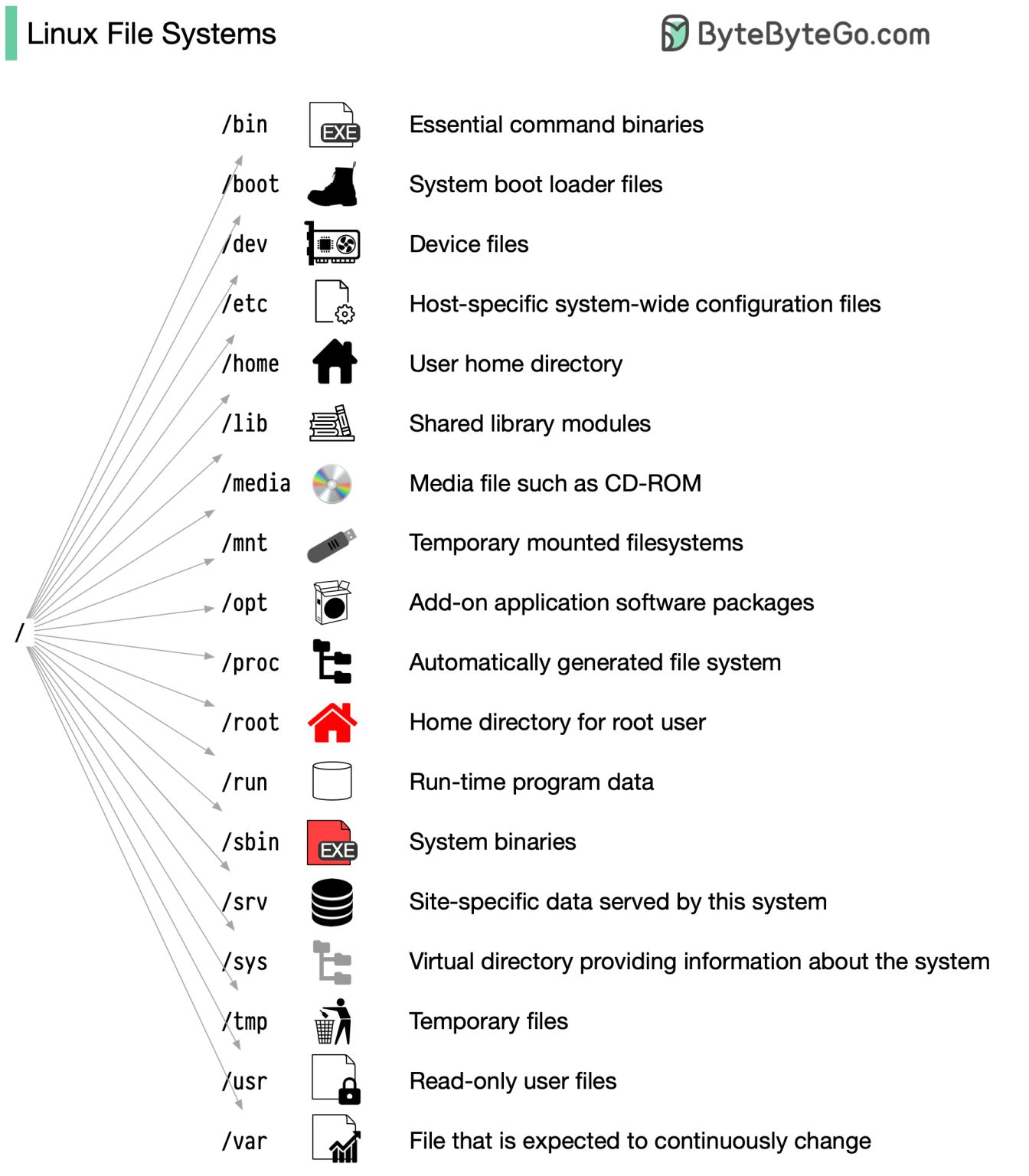
The root directory (/) is the beginning of the Linux filesystem hierarchy, like the trunk of a tree with branches spreading out. It contains all other directories and files.
Here are some key directories and their functions:
- /bin and /sbin contain essential system executables.
/binhas basic user commands like ls, cp, and mv, while/sbinholds system administration commands likefdiskandifconfig. It's like the kitchen in a house, where all the cooking takes place. - /usr is the secondary hierarchy for read-only user data. It contains additional applications and libraries in
/usr/bin,/usr/sbin,/usr/lib, and/usr/share./usr/localis the location for locally installed software, separate from system-wide packages. - /etc is the configuration central, storing system-wide configuration files like
/etc/fstabfor filesystem mounting info. User-specific configurations are stored in hidden files and directories within each user's home directory (e.g.,~/.bashrc). It's like the command center of your Linux "house." - /var stores variable data like log files and databases. It's like a garage where things change over time.
/var/logcontains system and application logs, while/var/spoolholds temporary files like print queues and mail queues. - /home is where each user's personal files, settings, and customizations reside, like their bedroom in a house.
- /tmp stores temporary files created by applications and users, and files are often deleted upon system reboot. It's like a mudroom where you leave your dirty shoes before entering the house.
Linux Filesystem Types
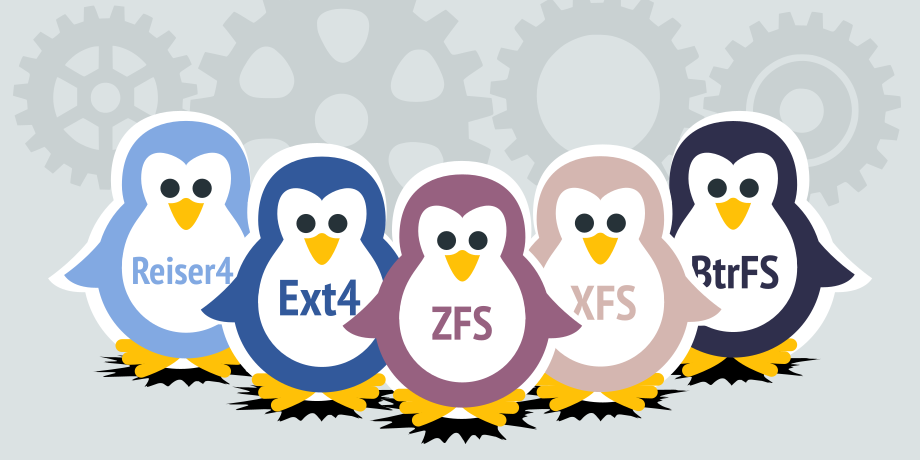
- ext4 is the default for many Linux distributions. It supports journaling, large file sizes, and is backward compatible with ext2 and ext3.
- XFS is a high-performance filesystem suitable for large-scale data storage. It supports journaling, online defragmentation, and rapid recovery from crashes.
- Btrfs is neat features, designed to address the scaling challenges in storage systems. It supports copy-on-write, snapshots, and RAID-like configurations for data protection. Think of it as a promising newcomer, like the hot new artist everyone's talking about.
- ZFS is the feature-packed powerhouse, initially developed by Sun Microsystems for the Solaris operating system. It has robust features like data integrity checks, snapshots, and built-in RAID functionality. ZFS is like the Swiss Army knife of filesystems, with a tool for every occasion.
- F2FS (Flash-Friendly File System) is built for speed on flash storage. It's specifically designed for SSDs and other flash-based storage devices. F2FS is like a speed demon, optimized to take advantage of the unique characteristics of flash storage.
Mounting: Connecting Filesystems
Mounting is the process of making a filesystem accessible to the operating system. It's like plugging in a power strip to extend your electrical outlets. When you mount a filesystem, you're connecting it to the directory tree, allowing users and applications to access the files within.
The /etc/fstab file is the mount point master list. It contains information about each filesystem and its mounting options. When the system boots, it reads the /etc/fstab file to know which filesystems to mount and where to mount them.
Mounting devices in Linux is like plug and play. When you insert a USB drive, the system detects it and mounts the device to a directory, usually under /media or /mnt, making the files accessible. You can also manually mount devices using the mount command. For example, to mount a USB drive with a FAT32 filesystem, you can run:
~$ sudo mount -t vfat /dev/sdb1 /mnt/usbMounting network shares allows you to access files from remote systems, promoting collaboration and resource sharing. Protocols like NFS (Network File System) and Samba (for Windows file sharing) enable mounting network shares. To mount an NFS share, you can run:
~$ sudo mount -t nfs server:/shared/directory /mnt/nfsAbout 8grams
We are a small DevOps Consulting Firm that has a mission to empower businesses with modern DevOps practices and technologies, enabling them to achieve digital transformation, improve efficiency, and drive growth.
Ready to transform your IT Operations and Software Development processes? Let's join forces and create innovative solutions that drive your business forward.
Subscribe to our newsletter for cutting-edge DevOps practices, tips, and insights delivered straight to your inbox!
Frequently Asked Questions
What is a Linux filesystem?
A Linux filesystem is the method by which the operating system organizes, stores, and retrieves data on storage devices, structured as a single hierarchy that begins at the root directory (/). In Linux, everything is treated as a file, including devices and system resources, and each file or directory is identified by a unique inode number. Devices appear under /dev, and system resources under /proc and /sys.
What is the Linux directory structure?
The Linux directory structure is a single tree that starts at the root directory (/) and branches into standardized directories with specific purposes. Key directories include /bin and /sbin for essential executables, /etc for configuration files, /var for variable data like logs, /home for user files, /usr for read-only user data, and /tmp for temporary files. This unified hierarchy contains all other directories and files.
What are the different types of Linux filesystems?
Common Linux filesystem types include ext4, XFS, Btrfs, ZFS, and F2FS. Ext4 is the default for many distributions and supports journaling and large files. XFS is a high-performance filesystem for large-scale storage, Btrfs adds copy-on-write and snapshots, ZFS offers data integrity checks and built-in RAID, and F2FS is optimized specifically for flash and SSD storage.
What does mounting a filesystem mean in Linux?
Mounting a filesystem in Linux means making it accessible to the operating system by attaching it to a directory in the existing directory tree. Once mounted, users and applications can access the files it contains through that directory path. The /etc/fstab file lists filesystems and their mount options, and the system reads it at boot to know which filesystems to mount and where.
How is the Linux filesystem different from Windows and Mac?
Linux uses a single unified hierarchy starting at root (/) where everything, including devices, is a file, while Windows uses separate drive letters like C: and D: for each partition or device. Windows relies on the feature-rich but less unified NTFS filesystem. Modern Macs use the Apple File System (APFS), introduced in 2017, which offers features like snapshots and cloning.